 FileFerry
Start where your files are
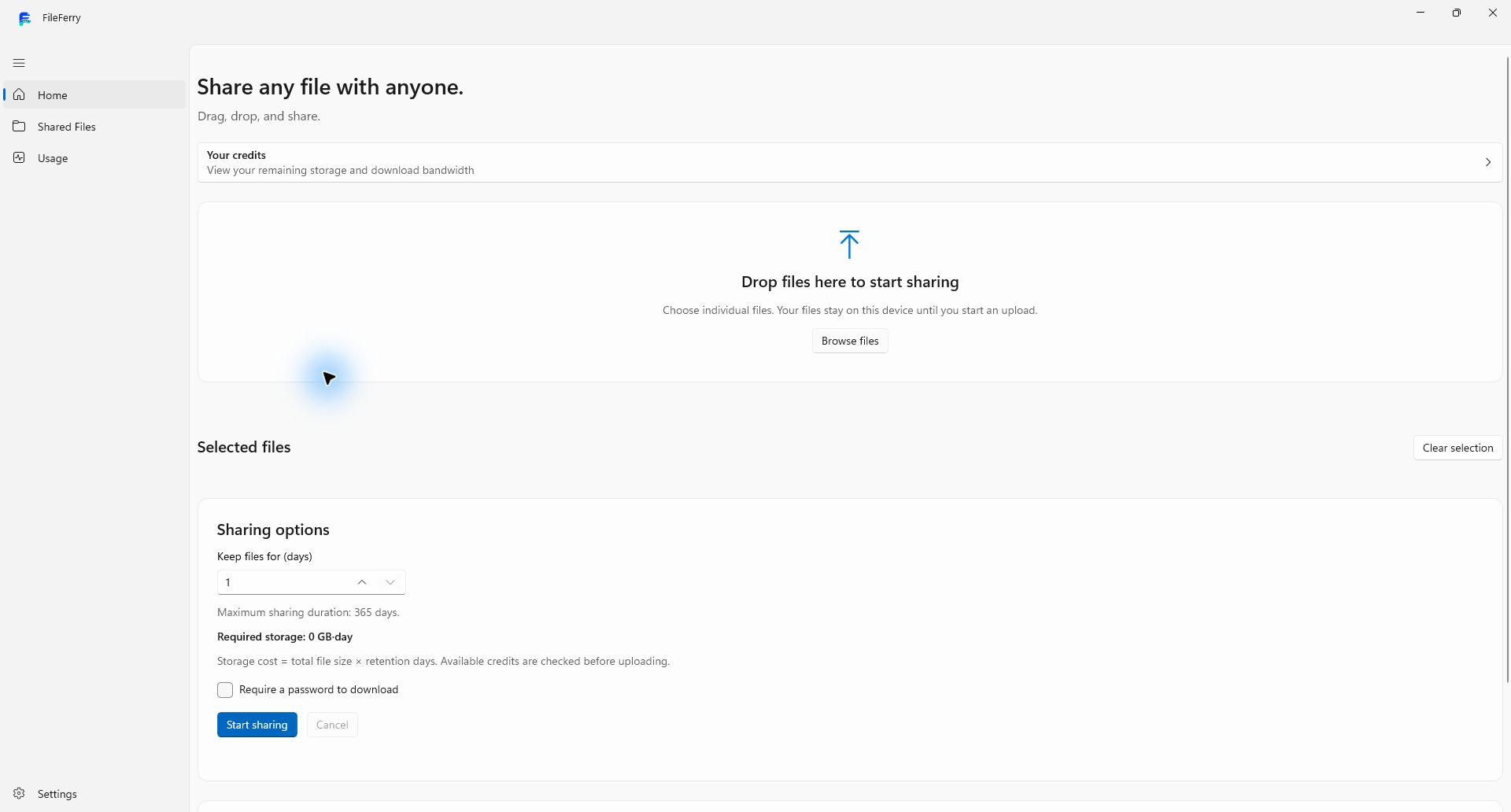
Drag and drop files, browse your computer, or send them to FileFerry from the Windows Share menu. Select multiple files and manage uploads in one place.
FileFerry for Windows
Turn documents, photos, videos and archives on your Windows PC into download links. Choose how long they stay available, add an optional password, and send the link.
Microsoft account and internet connection required. Uses prepaid storage and download credits.
Fits your Windows workflow
Drag and drop files, browse your computer, or send them to FileFerry from the Windows Share menu. Select multiple files and manage uploads in one place.
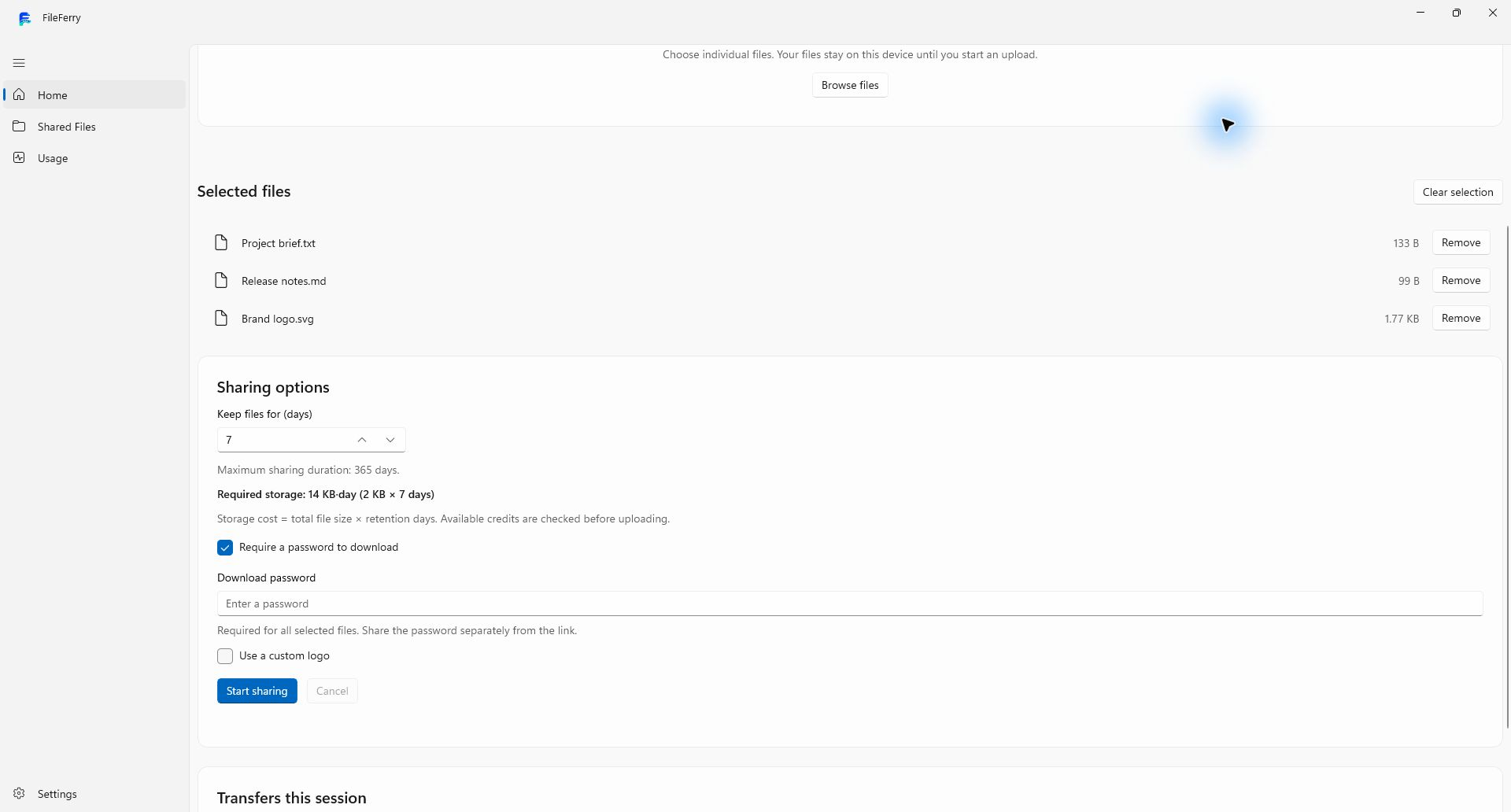
Keep files available for 1 to 365 days, subject to your credits and service limits. Sharing links stop providing access when files expire.
Require a password as well as the link. Send it separately to your recipient. Password protection is an access check, not end-to-end encryption.
Browse your shared files, search by name, and sort by creation or expiration date. Copy a sharing link whenever you need it.
Choose light, dark or system appearance. Switch between English and ten additional interface languages without restarting the app.
See remaining storage and download bandwidth in Usage. Purchase additional credits through Microsoft Store when available.
Your sharing options
Set the sharing duration and optional password before uploading. For password-protected files, you can also add a custom HTTPS logo URL to the download page.
FileFerry creates a link after a successful upload. Copy it into your usual email or messaging app. Anyone holding the link can access the file while it is available, subject to its password and service limits.
Get started
Get FileFerry from Microsoft Store and sign in with your Microsoft account.
Add your files, set the sharing duration and optional password, then start uploading.
Wait for the upload to complete, copy the download link, and share it.
Prepaid credits
Buy storage and download credits when you need them. Storage use depends on both file size and how long you share it; download bandwidth is counted separately.
10 GB × 30 days = 300 GB-days
Keeping a 10 GB file available for 30 days uses 300 GB-days of storage credits. Actual prices and available packs are shown in the app and Microsoft Store.
Ready when you are
Get the app, choose your files, and make your next share a link.
Get FileFerry from Microsoft StoreSee Microsoft Store for current availability and system requirements.
Your information
Understand how the service handles your account and shared files.
Read the policyUsing FileFerry
Read about sharing links, prepaid credits and responsible use.
Read the termsFor support, purchase questions or privacy enquiries, email [email protected].